Getting Started Guide
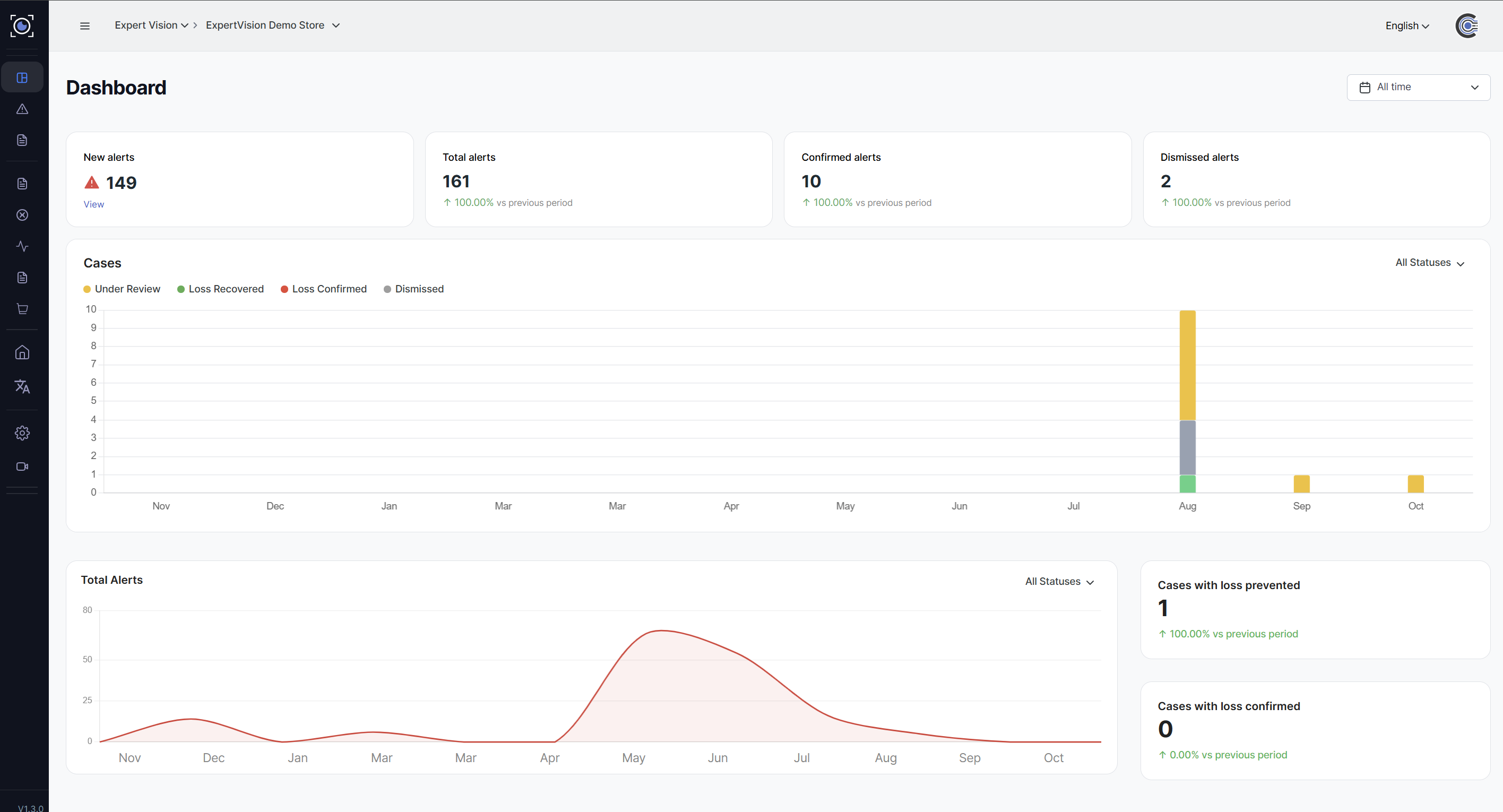
ExpertVision is a retail security platform.
Logging In
Access ExpertVision through your web browser using your provided credentials. Once logged in, you'll be directed to your default store's dashboard.
Navigation
ExpertVision uses a collapsible sidebar navigation that organizes features into logical sections. You can collapse or expand the sidebar by clicking the menu icon in the top-left corner of the screen.

Main Navigation Sections
Monitoring
- Dashboard: Overview of alerts, cases, and key metrics
- Alerts: Real-time and retroactive security alerts
- Cases: Escalated theft cases requiring investigation
Security Apps
- Automatic Theft Detection (ATD): Upload and analyze historical theft data
- Abandoned Transaction: Detect potentially fraudulent abandoned transactions
- Customer Action Detection: Monitor suspicious customer behaviors
- After Hours Person: Detect unauthorized presence outside business hours
- Pushout: Identify cart pushout incidents
Org Admin
- Company Management: Manage company settings and information
Store Admin
- Store Profile: Edit store details and settings
- Cameras: Configure cameras and floor plans
Switching Between Stores and Companies
At the top of the screen, you'll find dropdown menus for selecting your active company and store.

- Click on the company name to view and select from your available companies
- Click on the store name to view and select from stores within the selected company
- The current selection is always displayed in the header
User Profile and Settings
Access your user profile by clicking your profile picture in the top-right corner. From here you can:
- View your account information
- Access profile settings
- Sign out of the application
Language Selection
Change the application language using the language switcher in the top-right corner of the header.
Mobile Access
ExpertVision is fully responsive and can be accessed from mobile devices. On mobile:
- Tap the menu icon (three horizontal lines) to open the navigation drawer
- The navigation includes your selected store at the top
- User profile options are located at the bottom of the mobile menu