Cases Management
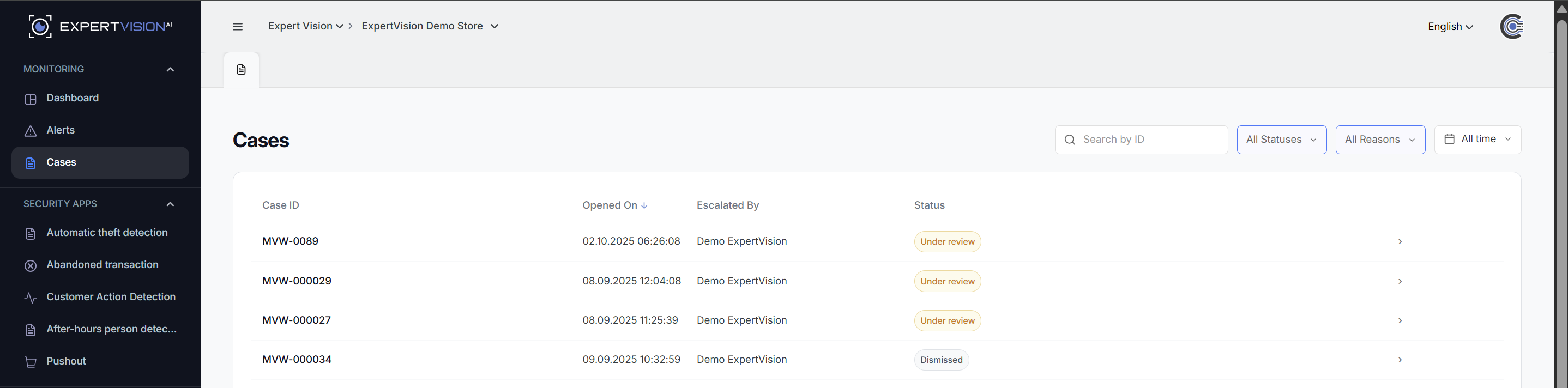
The Cases page displays and manages escalated theft alerts.
Cases Overview
The main cases view displays all escalated theft cases for your selected store. Cases represent alerts that require or have received detailed investigation, including:
- Confirmed theft alerts
- Suspected theft requiring investigation
- Loss prevention events
- Resolved cases with documented outcomes
Each case entry shows:
- Case ID
- When it the case was created
- Who escalated the alert
- Status
Case Statuses
Cases progress through different statuses during the investigation lifecycle:
- New: Recently escalated from an alert, awaiting initial review
- In Progress: Under active investigation
- Loss Prevented: Incident was intervened and loss was prevented
- Loss Confirmed: Theft confirmed with documented loss
- Resolved: Investigation completed with final determination
Filtering Cases
Use the filter panel to find specific cases or focus on cases requiring attention:
Available filters:
- Status: Filter by case status (single selection)
- Date Range: View cases from a specific time period
- Camera: Filter cases by camera location
- Loss Amount: Filter by documented loss value
Click "Apply" to activate your filters or "Clear" to view all cases.
Opening Case Details
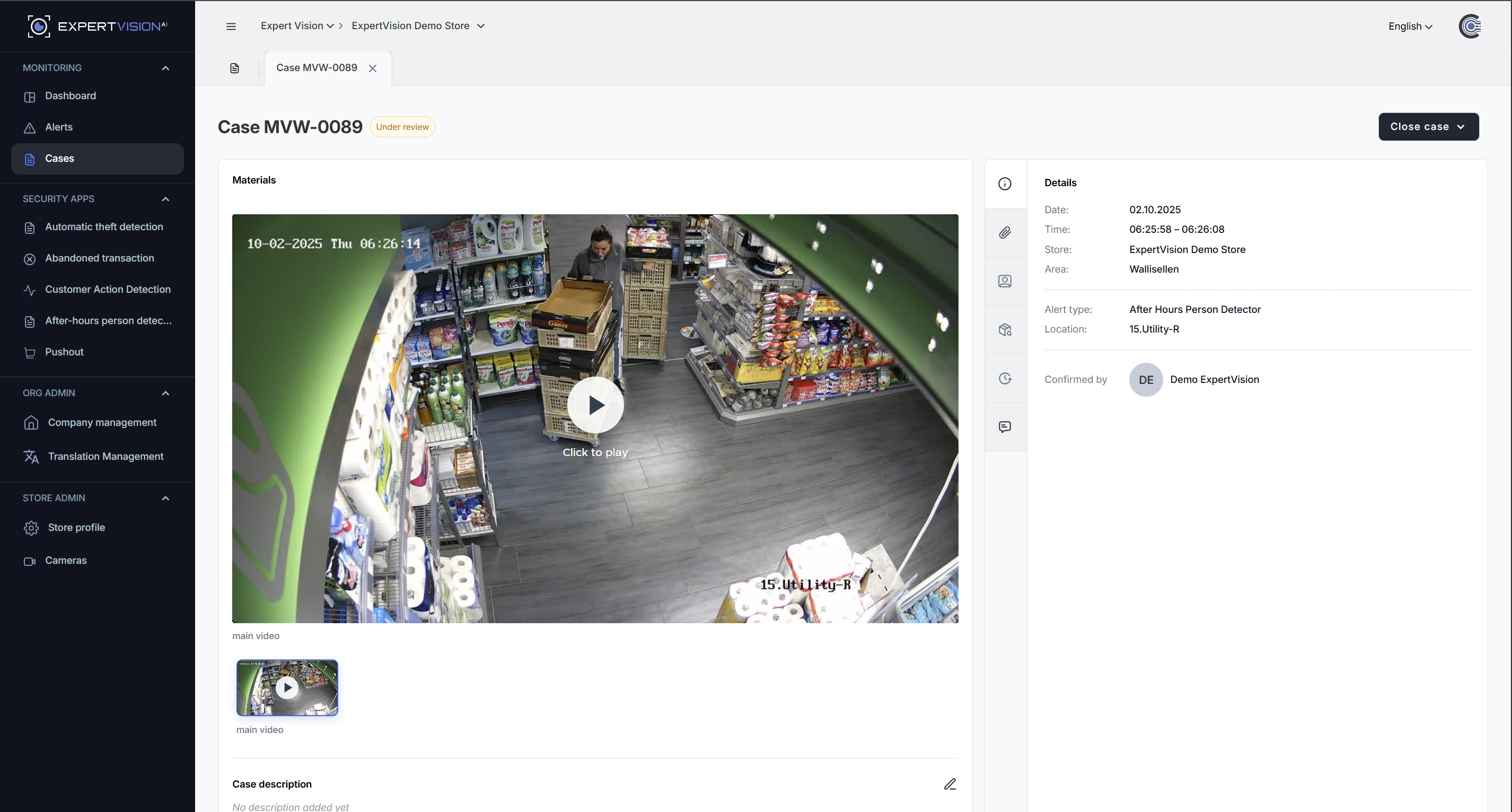
Click on any case to open its detailed investigation view. The tab system allows you to work on multiple cases simultaneously while keeping your main cases list visible.
Case Detail View
The detailed case view provides comprehensive tools for investigation and documentation:
Video Evidence
Review all video evidence associated with the case:
- Play back video from multiple camera angles
- Navigate the timeline to review specific moments
- Download video clips for external sharing or archival
- View synchronized multi-camera footage
Case Information
View and edit detailed case information:
Alert Details
- Original alert timestamp
- Detection type and category
- Camera locations involved
- Initial detection confidence
Investigation Status
- Current case status
- Status history and timeline
- Last updated timestamp
Product Information
Document which products were involved in the incident:
- Add product details (SKU, description, quantity)
- Specify product value
Loss Documentation
Record the financial impact of the incident:
Loss Amount Enter the total value of merchandise involved in the incident.
Loss Status
- Loss Prevented: Intervention stopped the theft before loss occurred
- Loss Confirmed: Theft was completed and loss was incurred
Investigation Notes
Add detailed notes throughout your investigation:
- Record offender details
- Record witness statements
- Related cases
Case Actions
Resolve Case
Mark a case as resolved when investigation is complete:
- Ensure all relevant information is documented
- Confirm loss status (prevented or confirmed)
- Verify loss amount is accurate
- Add final investigation notes
- Click "Resolve Case"
Resolved cases remain in the system for historical reference and reporting.
Dismiss Case
If after investigation you determine the case was a false positive:
- Add a note explaining why the case was dismissed
- Click "Dismiss" to remove it from active cases
- The case will be marked as dismissed but remain in historical records
Mobile Case Management
The cases interface is fully optimized for mobile devices, allowing you to:
- Review cases from anywhere
- Add investigation notes on the go
- Update case status in real-time
- Capture and attach photos as evidence
- Access video playback on mobile