Alerts
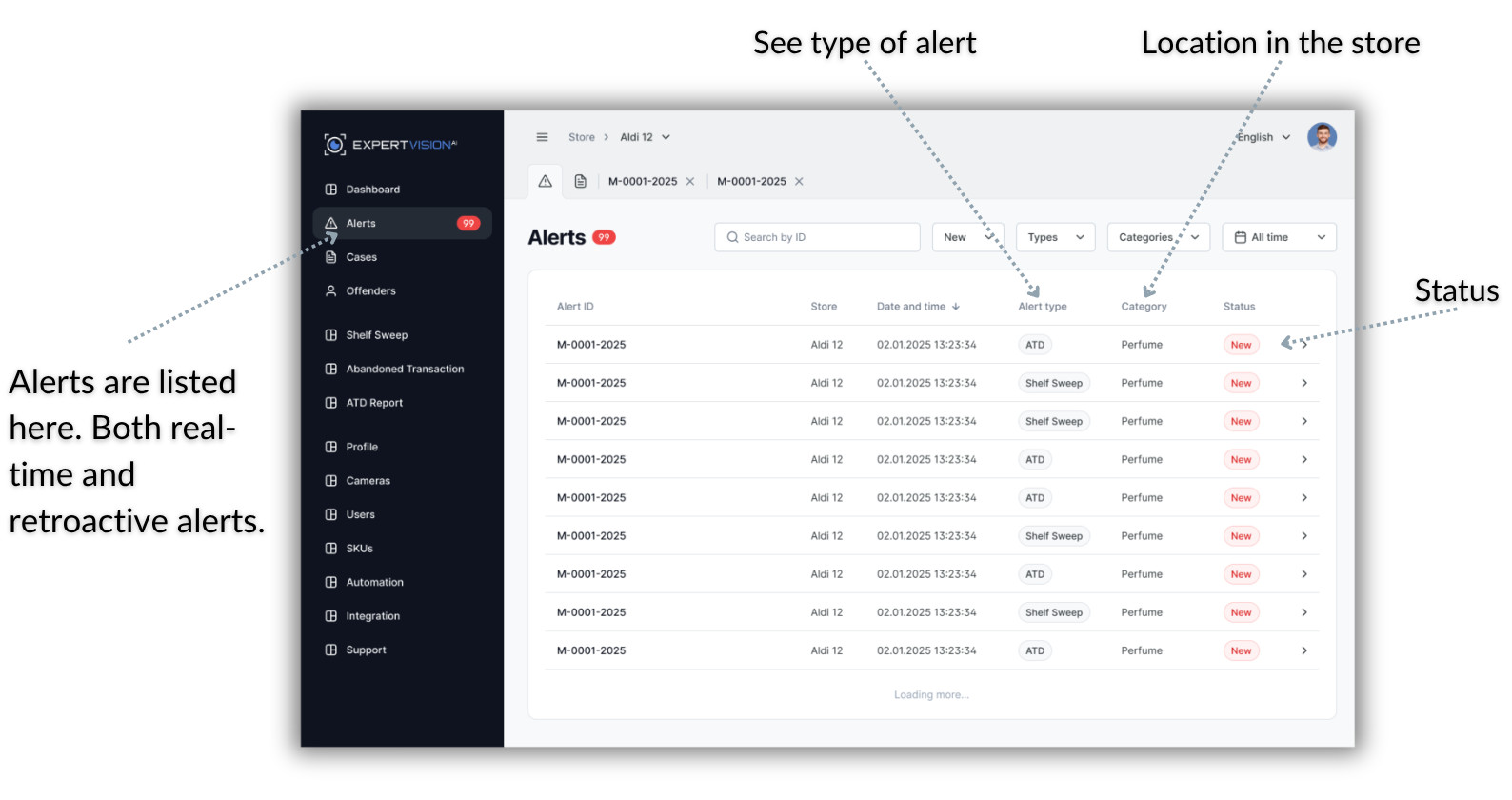
The Alerts page displays real-time and retroactive alerts generated by ExpertVision's detection apps.
Alert Overview
The main alerts view displays a comprehensive list of all security alerts for your selected store. Each alert includes:
- Alert ID
- Store where it happened
- Alert time
- Alert reason
- Camera location
- Alert status (New, Confirmed, Dismissed)
The alerts are displayed in a data grid format on desktop and as individual cards on mobile devices, making it easy to review alerts on any device.
Filtering Alerts
Available filters:
- Status: Filter by New, Confirmed, or Dismissed alerts (supports multiple selections)
- Date Range: Select a specific time period for viewing alerts
- App Type: Filter alerts by the security app that generated them (ATD, Pushout, After Hours Person, etc.)
- Camera: Filter alerts from specific cameras
Click "Apply" to activate your filters or "Clear" to reset all filters and view all alerts.
Sorting Alerts
Sort alerts by clicking on column headers in the data grid:
- Sort by timestamp (newest or oldest first)
- Sort by status
- Sort by camera location
The active sort order is indicated by an arrow icon in the column header.
Opening Alert Details
Click on any alert in the list to open a detailed view in a new tab. The tab system allows you to:
- Keep multiple alerts open simultaneously
- Quickly switch between different alert investigations
- Close individual alert tabs when you're finished reviewing them
Alert Detail View
The detailed alert view provides comprehensive information about a specific security incident:
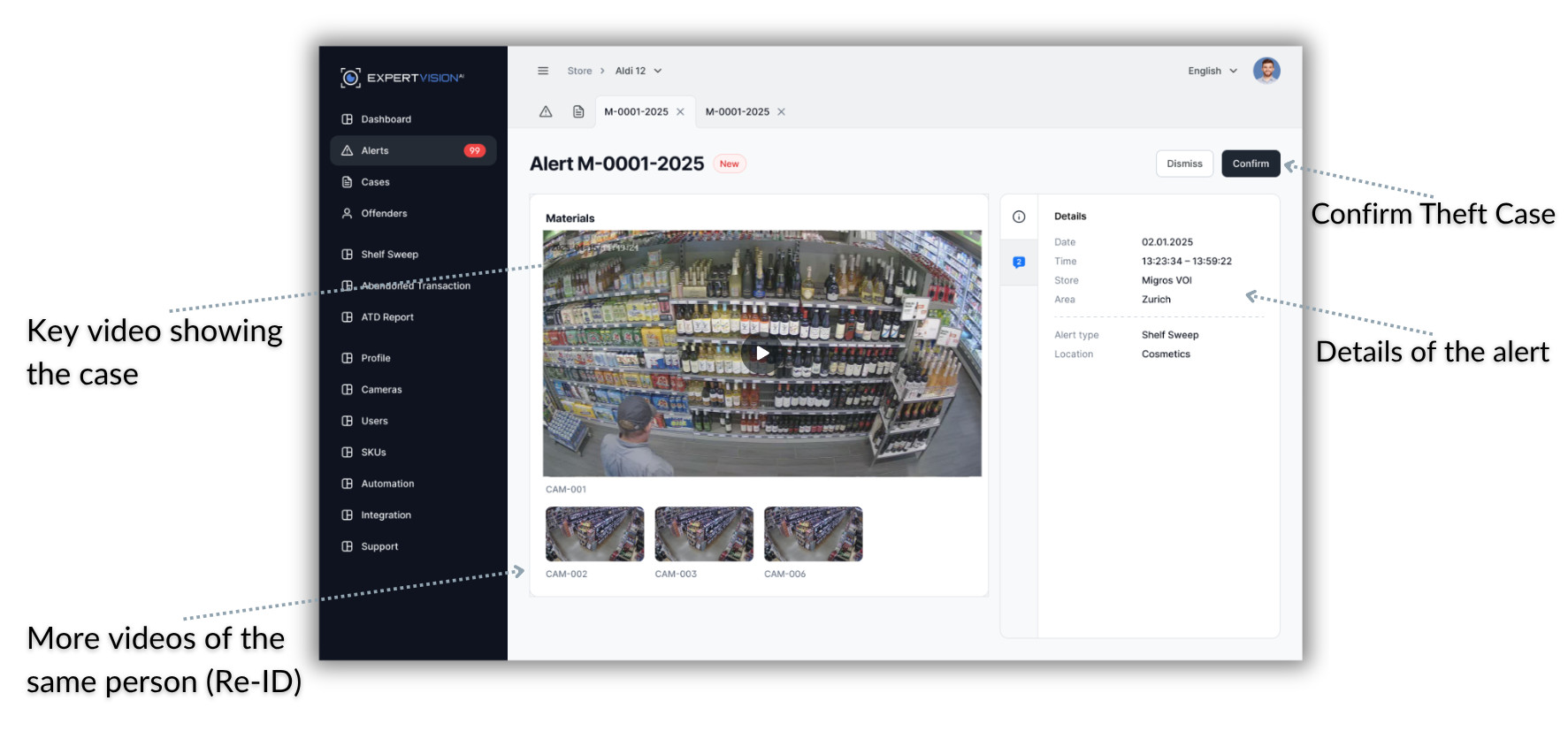
Key information displayed:
- Full-resolution video playback with timeline controls
- Alert metadata (timestamp, camera, location, detection type)
- Alert status and action history
- Multiple video angles (if available from different cameras)
- Related events or alerts
Video Playback
The video player allows you to:
- Play/pause the alert video
- Navigate through the video timeline
- View multiple camera angles (if available)
- Download video evidence for external review
Taking Action on Alerts
From the detail view, you can take the following actions:
Dismiss Alert Mark the alert as a false positive or non-actionable event.
Escalate to Case Escalate the alert to a case on the Cases page where you can:
- Add investigation notes
- Track the case status
- Document loss amounts
- Mark loss as prevented or confirmed
Real-time Alert Notifications
Enable browser notifications to receive instant alerts on new security events.
Mobile Alert Management
On mobile devices, alerts are displayed as scrollable cards optimized for touch interaction. You can:
- Swipe through alerts
- Tap to view full details
- Use the mobile-optimized filter panel
- Take action directly from the mobile interface